
Play Android Games on PC (2026) – Best Emulators, Setup & Tips

Introduction
Play Android games on PC is a common solution for users who want a bigger screen, better controls, and smoother gameplay than a mobile device can sometimes provide. With the help of Android emulators, many mobile games can run on Windows or macOS using keyboard, mouse, or controller support. This guide explains how it works, which emulators are commonly used, how to set them up safely, and what limitations to expect before getting started.
Can You Play Android Games on PC?
Yes, you can play Android games on PC by using an Android emulator. These programs create a virtual Android environment on a desktop, allowing mobile games to run with support for keyboard, mouse, and sometimes controllers.
How Android Games Work on PC
Android games do not run directly on Windows or macOS. Instead, they require an Android emulator. An emulator creates a virtual Android system on your PC, allowing apps and games designed for mobile devices to function in a desktop environment.
These emulators simulate core Android features such as the operating system, app store access, and touch controls. Most emulators also provide options to map keyboard and mouse inputs, adjust resolution, and manage performance settings without requiring advanced technical knowledge.
This makes emulators useful for users who want better control customization, larger display space, and more flexibility than a phone usually offers.
Popular Android Emulators for PC
| Emulator | Best For | Performance |
|---|---|---|
| BlueStacks | General use | High |
| LDPlayer | Gaming | Very High |
| NoxPlayer | Customization | Medium |
Supported Emulators
The following Android emulators are commonly used to play games on PC:
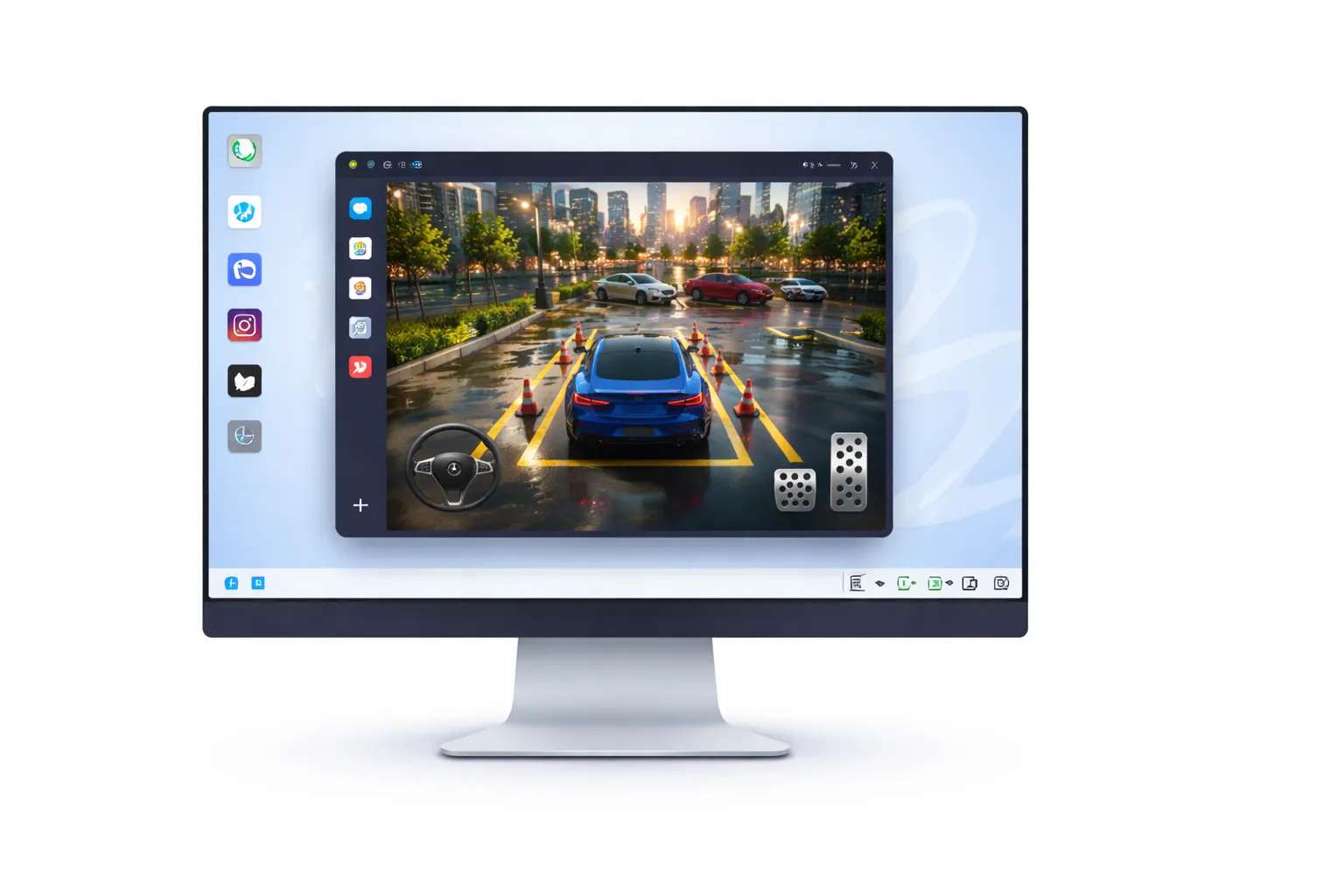
Blue Stacks
One of the most widely used Android emulators for general gameplay and broad app compatibility.
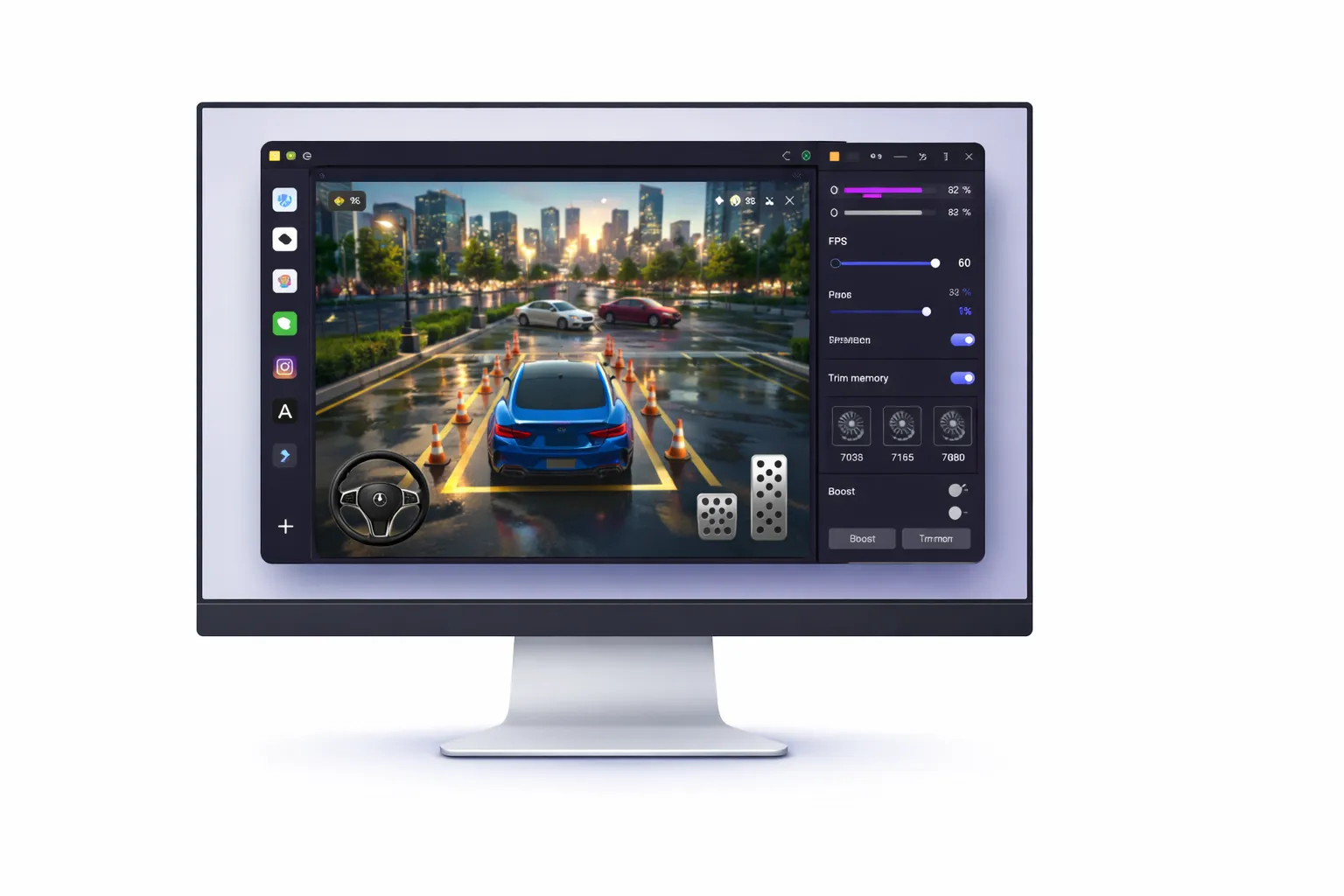
LD Player
A gaming-focused emulator that is often preferred for smoother FPS, faster response, and control customization.
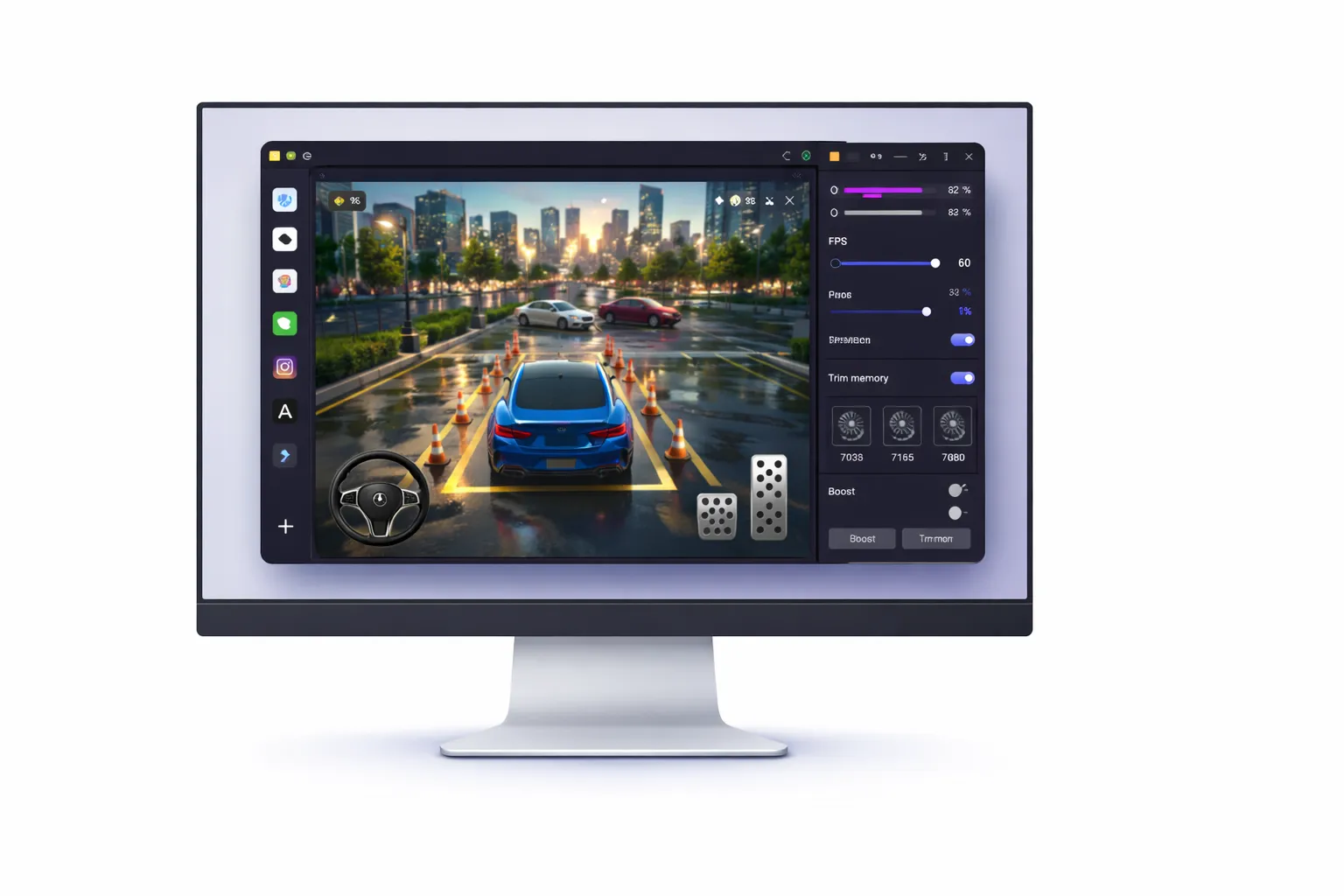
Nox Player
A flexible emulator with advanced settings, suitable for users who want more control over performance and system configuration.
How to Play Android Games on PC (Step-by-Step
1. Download and install a trusted Android emulator on your PC
2. Launch the emulator and complete the initial setup
3. Sign in with a Google account if required
4. Open the app store inside the emulator
5. Download the Android game you want to play
6. Adjust controls, graphics, and performance settings
7. Start the game and test input responsiveness
Always use official stores and trusted emulator sources.
Best Emulator for Different Use Cases
Different emulators suit different users:
– Best for low-end PCs: LDPlayer, because it is often lighter and more gaming-focused
– Best for general performance: BlueStacks, because it offers broad compatibility and stable gameplay
– Best for customization: NoxPlayer, because it gives users more control over emulator settings and configuration
The best choice depends on your PC hardware, the type of game you want to play, and how much control you need over settings.
Pros & Cons of Playing on PC
Pros:
– Better controls with keyboard, mouse, or controller
– Bigger screen for improved visibility
– More stable gameplay on capable hardware
– Easier multitasking and screen recording
Cons:
– Emulator setup is required before playing
– Some games may have compatibility issues
– Performance depends on PC specifications
– Certain multiplayer titles may restrict emulator users
Performance & Safety Tips
- Ensure your PC meets basic system requirements (RAM, CPU, storage)
- Lower graphics or FPS settings if performance issues occur
- Keep the emulator updated to the latest version
- Avoid downloading games or emulator files from unofficial sources
- Use antivirus software and secure network connections
These steps help maintain stable performance and reduce security risks.
Users should also avoid changing advanced emulator settings unless they understand how those changes affect performance and stability.
Limitations of Playing Android Games on PC
- Not all Android games are compatible with emulators
- Some multiplayer games restrict emulator usage
- Game performance depends on PC hardware
- Touch-based games may require control adjustments
Understanding these limitations helps avoid unexpected issues.
Compatibility and Game Support Notes
While many Android games work well on PC through emulators, compatibility can vary depending on the game and emulator version. Some titles are optimized for touch controls and may require manual key mapping to play comfortably on a PC.
Game developers may also update their apps in ways that affect emulator performance or support. For this reason, users should always keep both the emulator and installed games updated to ensure the best possible experience when playing Android games on PC.
When Playing Android Games on PC Makes Sense
Playing Android games on PC makes the most sense for users who want better controls, longer sessions, smoother performance on supported hardware, or easier screen recording and multitasking. It is especially useful for simulation, strategy, and action games where keyboard mapping and display size can improve the overall experience.
Minimum PC Requirements for Android Emulators
Most Android emulators work better on PCs with a modern processor, at least 4 GB of RAM, enough storage space, and hardware virtualization enabled. Higher-end systems generally provide smoother gameplay, faster loading, and fewer crashes, especially with demanding games.
Frequently Asked Questions (FAQs)
Conclusion
Playing Android games on PC can be a practical option for users who want better controls, more screen space, and flexible performance settings. With the right emulator, many mobile games can run smoothly on desktop systems without a complicated setup process. The best results come from choosing a trusted emulator, checking game compatibility, and adjusting settings based on your hardware.
By choosing the right emulator and optimizing settings based on your PC, you can achieve smooth and stable gameplay. Always use trusted sources and keep your software updated for the best and safest experience.